
At this point, you probably reverted a snapshot or restored an Active Directory Domain Controller from an image level backup. Also, you don’t have another option to get it back up. So, you are seeing this error when logging into your Active Direoctory Domain Controller.
We can’t sign you in with this credential because your domain isn’t available. Make sure your device is connected to your organization’s network and try again. If you previously signed in on this device with another credential, you can sign in with that credential.

*** Note that this is not the recommended method to recover Active Directory so proceed at your own risk!***
Prerequisites:
Ensure there are not any other Domain Controllers running. You will need to rebuild all the other domain controllers after completing this process.
Must have the DSRM Administrator account password to proceed.
Take a snapshot of the Domain Controllers prior to starting this procedure so you can quickly go back to the previous state should you need to.
- Log into your primary Active Directory Domain Controller. This is the Domain Controller that is running the primary Domain Controller (PDC) FSMO role. As authentication with the domain isn’t working, the Active Directory services are likely not starting. You’ll need to sign in with the DSRM Administrator account.
2. After signing in, you will notice in the corners of the screen, it says Safe Mode. This is the mode that you need to be in and loads with the DSRM Administrator account signed in.

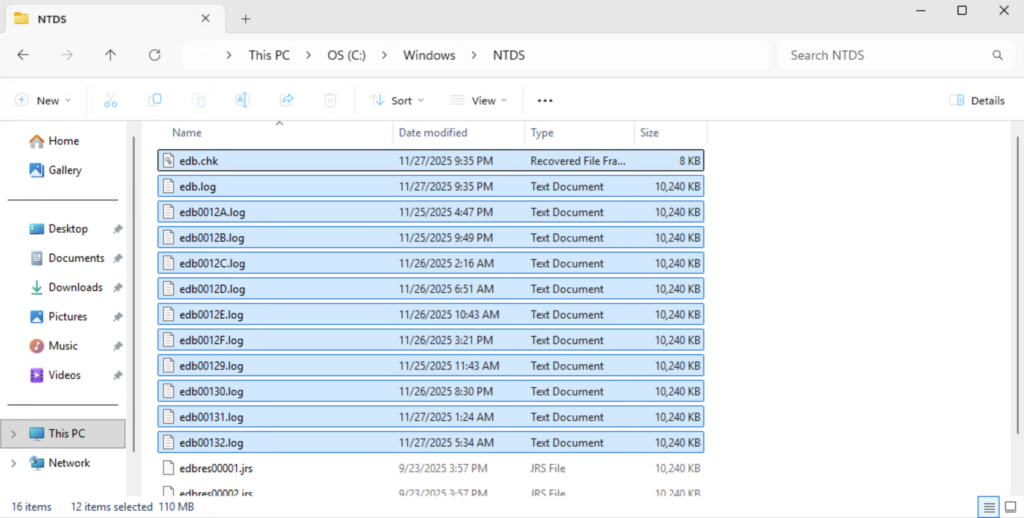
3. Open File Explorer and go to C:\Windows\NTDS directory. Here you will find the Active Directory database files.
4. Select the edb.chk file along with all the *.log files. Move these files to another directory.
5. Open a PowerShell window As Administrator.
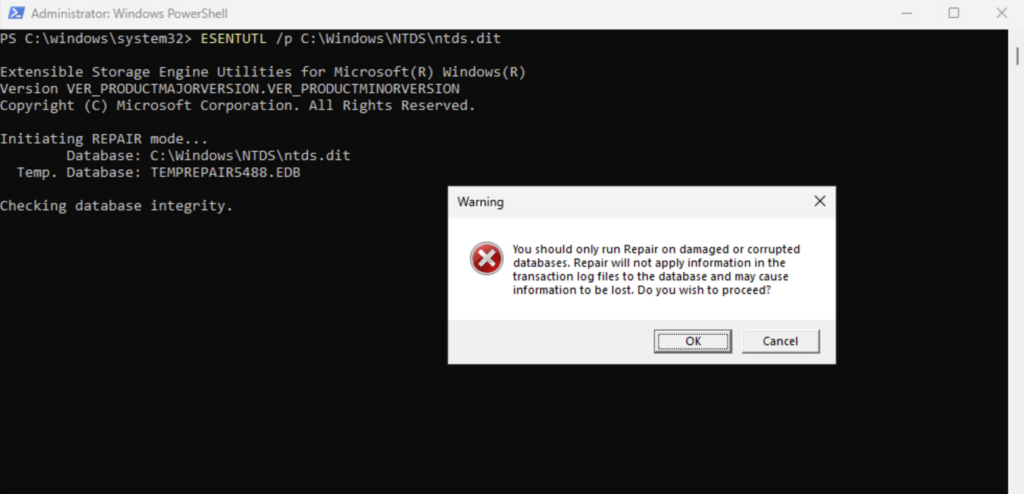
6. Run the command below:
ESENTUTL /p C:\Windows\NTDS\ntds.dit
7. You will get this Warning message:
You should only run Repair on damaged or corrupted databases. Repair will not apply information in the transaction log files to the database and may cause information to be lost. Do you wish to proceed?
If you wish to take the risk, click OK.
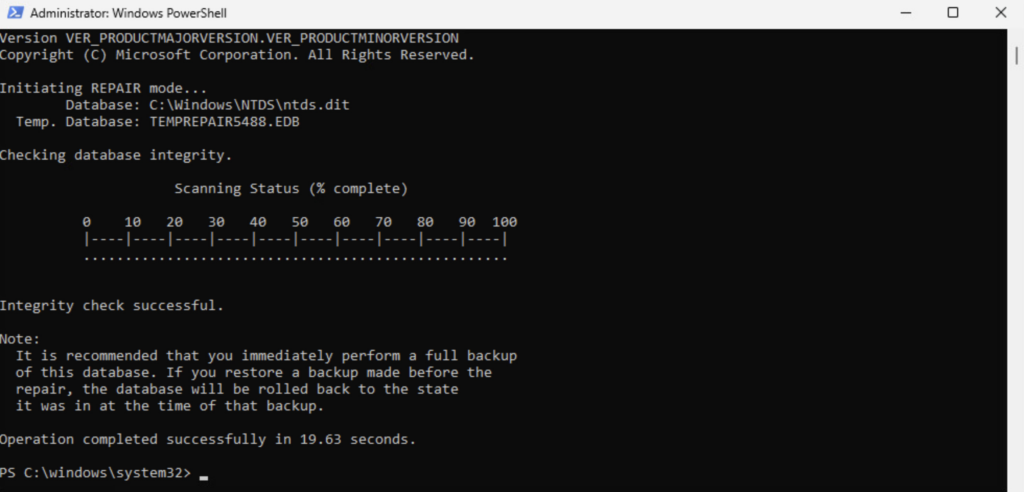
8. The operation should complete successfully.
9. Type in msconfig command to open System Configuration.
msconfig
10. Uncheck Safe Boot and click OK.
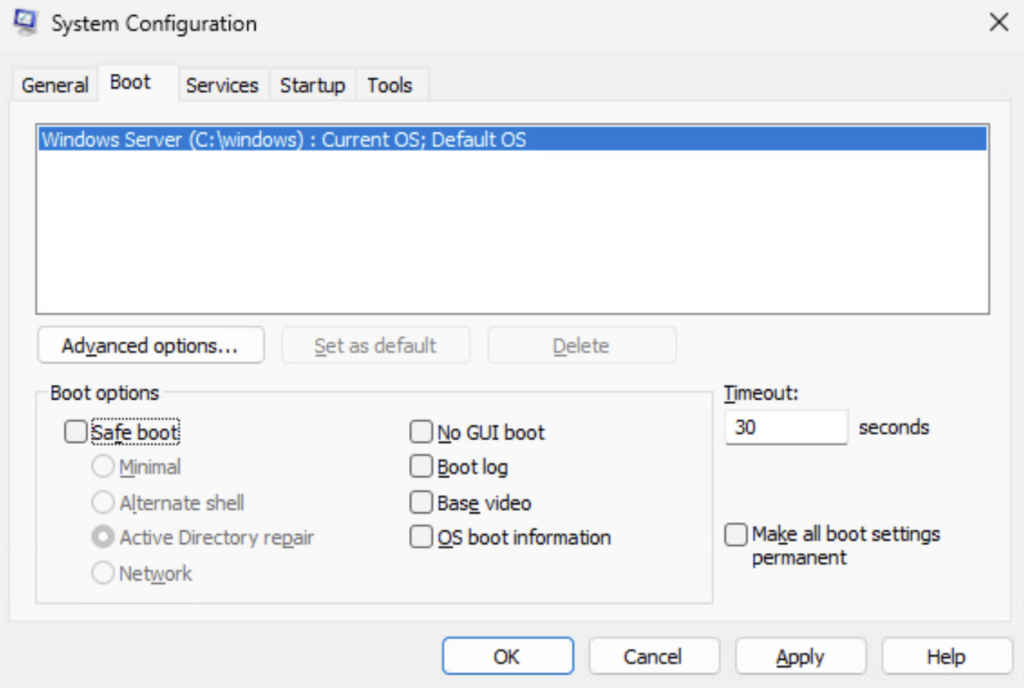
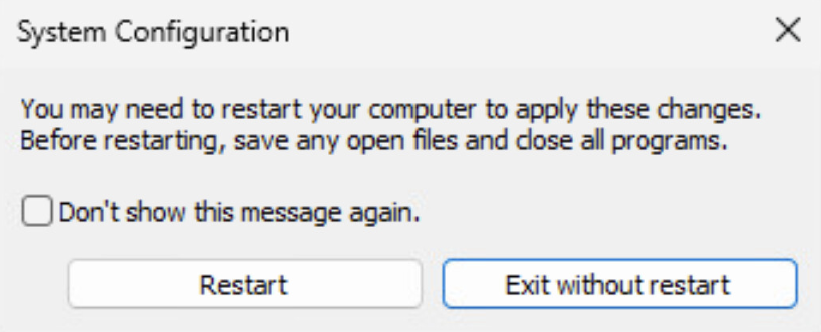
11. Click on Restart to restart the Domain Controller.
12. When the domain controller comes back up at the login screen, you should be able to sign in with a domain account. The domain should allow authentication now.